Your Productivity Killer: Why Windows 11 Keeps Forgetting Your Windows
The hallmark of a high-efficiency home office is a stable, reliable workspace, and for professionals between the ages of 35 and 55, a dual or triple monitor setup is essential for maximizing productivity. You’ve invested significant time in arranging your digital desktop perfectly: documents carefully segregated, communication apps minimized, and the primary application front and center for focused work.
Yet, this perfect workflow is instantly sabotaged by one of the most persistent and frustrating flaws in Windows 11: the constant resetting of application window positions. Every time your computer wakes up from sleep, or you reconnect your laptop to a docking station, all your meticulously organized windows scatter, pile up on the primary screen, or simply disappear. This persistent issue, where Windows 11 fails to reliably remember your window positions and sizes, is a constant, unnecessary source of irritation and a daily tax on your efficiency.
The root cause of this annoying issue is not a hardware fault, but a deep flaw in how Windows 11’s modern power management handles the status of your display connections during low-power states. The system mistakenly perceives the monitors as “disconnected” when power is temporarily reduced. When the system wakes up, it re-establishes the connection but, due to a critical memory management flaw, places every application back to default coordinates.
This definitive guide provides the complete solution, moving beyond simple settings adjustments to provide the permanent registry solution required to solve this disruptive Windows 11 Dual Monitor Window Arrangement Bug once and for all.
1. The Quick Fix: Basic Windows Settings Configuration and Its Limits
Before attempting the deep-level fix, you must verify the basic Windows settings. While this simple adjustment resolves the problem for a small fraction of users, it is important to understand why this feature often proves inadequate, particularly for advanced setups involving docking stations and hot-plugging.
Step-by-Step: Enabling the Window Position Save Feature
-
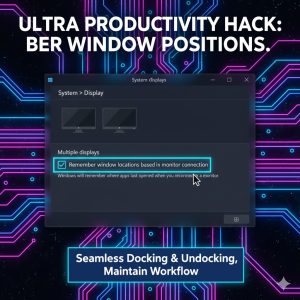
Access Display Settings: Right-click an empty area on your desktop and select Display settings, or navigate through the system path: Settings > System > Display.
-
Locate Multiple Displays Section: Scroll down until you find the dedicated Multiple displays configuration panel.
-
Toggle the Key Option: Crucially, ensure the checkbox next to “Remember window locations based on monitor connection” is checked (or toggled ON).
Why the Quick Fix Fails (The Technical Breakdown)
If the bug persists after enabling this feature, the problem is typically a complex timing issue related to the DisplayPort (DP) handshake or the HDMI connection signal latency upon waking.
-
Aggressive Power States: Windows 11 uses aggressive power states (like Modern Standby) which drastically cut power to peripherals. High-resolution monitors, especially when connected via a single USB-C cable through a dock, often require a few critical seconds longer to initialize and fully re-authenticate their identity to the system.
-
The Race Condition: The Windows kernel often attempts to restore the desktop environment and render the desktop before the monitors have successfully sent their final signal confirmation. The OS defaults to a single, lower-resolution state during this brief lag, causing application windows, which detect the sudden lack of display space, to snap back to the primary monitor’s top-left corner.
-
The Need for a Permanent Solution: The only reliable way to bypass this race condition is to force Windows to maintain the display configuration’s “active” status in memory, even during sleep cycles.
2. The Permanent Fix: Registry Editor Masterclass for System Stability
For a guaranteed, permanent solution that overcomes deep sleep and hot-plug issues, you must directly modify the Windows Registry to control how the system manages display activation.
⚠️ Registry Editing Warning
Modifying the Windows Registry incorrectly can lead to severe system instability, data loss, or render Windows unusable. Proceed with extreme caution and ensure you follow every step precisely.
Step-by-Step Guide to Registry Modification (Permanent Solution)
-
Open the Registry Editor (Regedit): Press the Windows Key + R to open the Run dialog box. Type
regeditand press Enter. Click Yes when prompted by User Account Control (UAC). -
Navigate to the System Policies Path: In the Registry Editor address bar, paste the following path and press Enter:
HKEY_LOCAL_MACHINE\Software\Microsoft\Windows\CurrentVersion\Policies -
Create the ‘System’ Key (If Missing): Under the
Policiesfolder, look for a key namedSystem. If it does not exist, right-click onPolicies, select New > Key, and name the new key exactly:System. -
Create the DWORD Value: Right-click inside the right panel of the System key. Select New > DWORD (32-bit) Value.
-
Name the Value: Name the new entry exactly:
AllowDeactivateMonitorSetting -
Set the Value Data: Double-click the newly created
AllowDeactivateMonitorSettingentry. Verify that the “Value data” is set to0(zero). -
Exit and Restart: Close the Registry Editor. You must perform a full system restart for this low-level policy change to be loaded and successfully applied by the Windows kernel.
Why This Works: The Technical Explanation
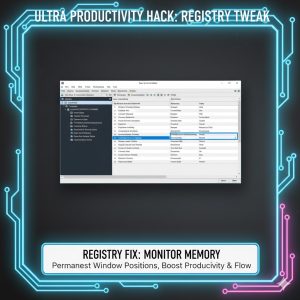
The AllowDeactivateMonitorSetting DWORD value dictates whether Windows is permitted to completely deactivate the monitor connection logic during a sleep cycle or power transition. By setting this value to 0 (False/Disabled), you are issuing a direct command to the Windows kernel: “Do not fully power down or disconnect the monitor settings.” This crucial directive forces the system to maintain the display configuration’s “active” status in memory, effectively bypassing the connection race condition that triggers the window position reset upon wake-up.
3. Advanced Troubleshooting: Solving Residual Window Snapping Issues
If the permanent registry fix still results in occasional issues, the problem may be isolated to outdated GPU drivers or specific application conflicts that interfere with display memory.
Ensure GPU Drivers are Current
The Graphics Processing Unit (GPU) driver is the software responsible for communicating the display layout and capabilities to the operating system. An old or generic driver can easily cause the bug to persist.
-
Action: Bypass Windows Update. For the highest reliability, go directly to the manufacturer’s website (NVIDIA, AMD, or Intel) and download the latest driver package compatible with your GPU model.
Verify Docking Station and Cable Integrity
If the issue is primarily triggered when connecting or disconnecting your laptop:
-
Dock Quality: Using high-quality docking stations is vital. Low-quality or generic USB-C docks may use chipsets that are slow to re-authenticate the connected displays, reintroducing the signal latency that causes the reset.
-
Cable Certification: Using poor or overly long HDMI/DisplayPort cables, especially for high-resolution monitors, can introduce signal degradation and handshake errors that Windows may mistake for a “monitor removal.”
GPU Control Panel Window Memory
Some advanced graphics control panels have features that manage window placement, which may inadvertently conflict with the Windows 11 registry setting.
-
NVIDIA Control Panel / AMD Adrenalin: Check the settings within your GPU control software to ensure no specific custom display configuration profiles or overrides are currently active.
Conclusion: Take Back Your Workspace
The constant resetting of window positions is a flaw in Windows 11’s power management that unnecessarily wastes professional time. By successfully implementing the registry modification, you are setting a system-level policy that forces the operating system to prioritize the integrity of your display configuration over aggressive power-saving habits.
For users seeking to Fix Windows 11 Multi-Monitor Sleep issues, the combination of the basic settings check and the deep registry edit offers the most definitive and reliable path to regaining permanent control of your digital workspace. This is the permanent solution.