🚀 Mastering Wi-Fi 7: Solving Complex Network Problems
Wi-Fi 7 promises blazing speeds and minimal latency, but its complexity (M-LO, 6GHz) often leads to frustrating dropouts and handshake failures, especially in mesh systems. When cutting-edge technology meets the real world, advanced troubleshooting is necessary.
Before diving into advanced fixes, it’s essential to ensure your network foundation is solid. If you haven’t yet planned your full network topology, check out our ultimate home network upgrade guide comparing Wi-Fi 7 and Mesh systems. This guide focuses on $5$ common, yet complex, Wi-Fi $7$ errors and how to solve them.
1. Address Multi-Link Operation (M-LO) Misconfiguration
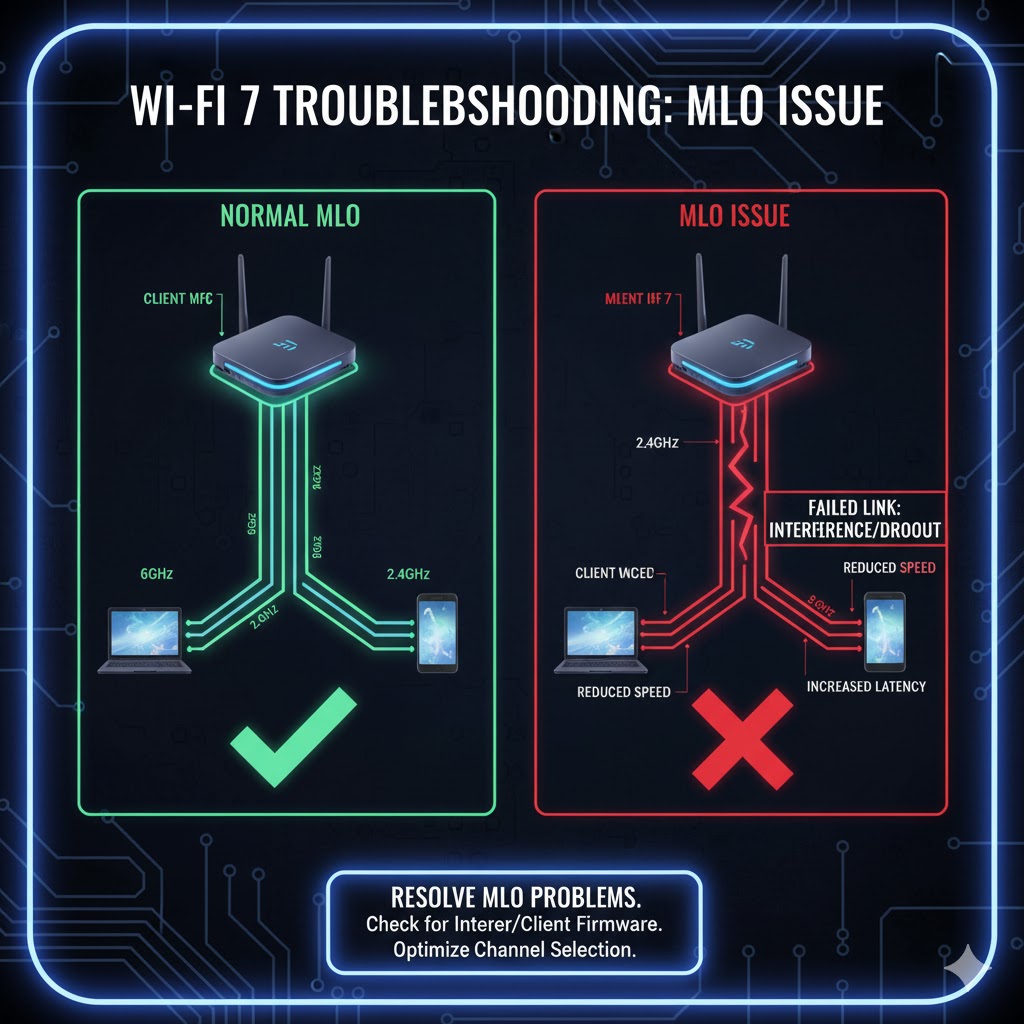
Multi-Link Operation (M-LO) is a key feature of Wi-Fi 7, allowing your device and router to use the 5GHz and 6GHz bands simultaneously. If this feature is improperly configured, or if the client device only partially supports M-LO, it can lead to severe network instability and intermittent dropouts.
The Fix:
-
Isolate M-LO: Temporarily disable M-LO on your Wi-Fi 7 router’s advanced settings menu.
-
Test Stability: If stability significantly improves, the issue lies with the interaction between your router and a specific client device (e.g., an older laptop).
-
Update/Check Client: Update the Wi-Fi adapter driver on the problematic client device. If stability issues persist, consider keeping M-LO disabled until the client receives a stable firmware update.
2. Optimize 6GHz and 5GHz DFS Channels
The 6GHz band offers clean, wide channels, but is subject to strict power and regulatory limitations. Meanwhile, the 5GHz band suffers from potential DFS (Dynamic Frequency Selection) penalties, where the router must cease transmission upon detecting weather radar, causing temporary dropouts.
The Fix:
-
For 6GHz: Check your router’s regional settings to ensure it’s operating at maximum legal power output. Incorrect regional settings can drastically limit range.
-
For 5GHz (DFS Avoidance): Manually switch your 5GHz channel to a non-DFS channel (typically lower channels like 36, 40, 44, or 48) to bypass the required radar detection waiting period that causes service interruptions.
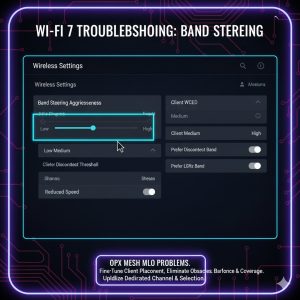
3. Adjust Band Steering Aggressiveness
Band steering is a feature designed to push clients (laptops, phones) to the highest-performing frequency band, which is usually 6GHz on a Wi-Fi 7 router. If a device has marginal signal strength in the 6GHz range, aggressive steering can cause the device to rapidly connect and disconnect, resulting in frustrating dropouts.
The Fix:
-
Access your router’s advanced settings for Wi-Fi management.
-
Lower the “Band Steering Threshold” or “Aggressiveness” setting. This increases the signal strength threshold required before the router forces a move to the 6GHz band.
-
This allows the device to stay on the more stable 5GHz band when the 6GHz signal is marginal, dramatically reducing dropouts.
4. Resolve Mesh Network Handshake Errors (Backhaul)
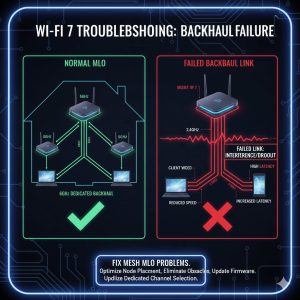
In Wi-Fi 7 Mesh systems, the intermittent connection or handshake error is often not the connection to your device, but the link between the mesh nodes (the Backhaul). If the backhaul link is unstable, all client connections to that node will eventually fail.
The Fix:
-
Use Wired Backhaul: The definitive fix is using a wired Ethernet connection between your nodes. This guarantees stability and frees up wireless capacity for client devices.
-
Wireless Optimization: If wired backhaul is impossible, check the dedicated wireless backhaul channel (often $5\text{GHz}$ or $6\text{GHz}$) for congestion. Ensure your mesh nodes are positioned closer to the main router to establish a strong, stable backhaul link.
5. Firmware, Driver, and Hardware Offload Check
Wi-Fi 7 is a relatively new protocol, meaning initial device firmware and drivers are often buggy. This is the simplest, yet most crucial, fix.
The Fix:
-
Update Everything: Immediately update the router firmware to the latest stable version and update the Wi-Fi adapter driver on all client devices (especially those supporting Wi-Fi 7).
-
Disable Smart Features: Look for advanced router or network adapter settings like “Hardware Offload,” “Smart Connect,” or “TWT (Target Wake Time)” and try disabling them. These features can sometimes interfere with the new M-LO or 6GHz protocols, leading to connection failures.
By implementing these $5$ fixes, you systematically address the most common and complex issues unique to the Wi-Fi $7$ generation, specifically relating to M-LO and mesh stability, maximizing your connection’s speed and reliability.