

For years, that chunky external hard drive has been the silent vault for your life’s memories: baby photos, tax returns, and decades of irreplaceable documents. You plug it in, it works, and you forget about it. But if that drive is five years or older, you are operating on borrowed time.
Data shows that the lifespan of a continuously used mechanical hard drive (HDD) is typically limited to 3 to 5 years of reliable service. After this point, mechanical wear, fluctuating temperatures, and sudden power cycles drastically increase the risk of catastrophic failure.
The stakes are enormous. Losing these files means losing family history. Before that happens, we need to recognize the subtle warning signs your drive is giving you and act fast. Here are the three clearest signs your external hard drive is dying and the urgent, 2-step plan you need to perform now.
Is That Noise Normal?
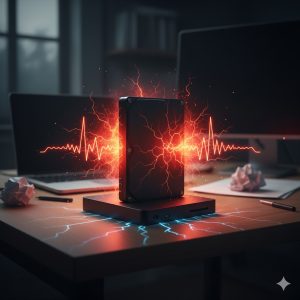
The silence of a hard drive is its greatest reassurance. Any new or worsening noise is a clear physical indicator of imminent failure. Your drive is no longer just processing data—it is grinding itself into dust.
Sign 1: The Warning Noise
External hard drives are complex mechanical devices. When the internal read/write heads or the spindle motor fail, they often produce alarming sounds that are clear distress signals.
-
The Click of Death: A repetitive, rhythmic clicking noise is the most serious sign. This means the read/write head is failing to find the data track and is resetting itself repeatedly—a physical fault that cannot be repaired without professional data recovery (which can cost thousands).
-
Grinding or Scraping: A harsh, grinding, or metal-on-metal sound suggests that the read/write head is scraping the magnetic platter, destroying the data stored there with every rotation.
-
Beeping: If your drive beeps but doesn’t spin up, it usually means the motor is seized or not receiving enough power, a serious sign of physical malfunction.
Action: If you hear any of these sounds, unplug the drive immediately. The longer it runs, the more data is destroyed.
Sign 2: The Crippling Speed Drop
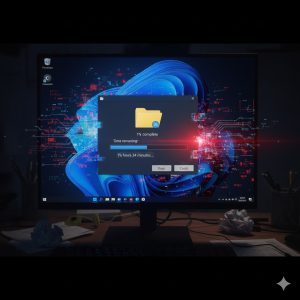
Reliable data transfer should be smooth and fast. When the drive struggles to read its own data, it causes your computer to wait, leading to crippling slowdowns and freezes.
When the drive’s surface develops bad sectors (corrupted areas), the drive controller must repeatedly attempt to read the data, leading to a huge reduction in performance. This is particularly noticeable when transferring large batches of files, such as a folder of high-resolution family photos.
-
PC Freezing: Your computer instantly freezes or locks up the moment you access the external drive in File Explorer or Finder.
-
Transfer Estimates Jump: A file transfer starts, but the “time remaining” estimate jumps erratically from 2 minutes to 2 hours.
-
Long Initialization: The drive takes several minutes to simply appear on your desktop after you plug it in.
This slowdown means the drive is failing to read sectors efficiently, increasing the likelihood of total data loss.
Sign 3: The Vanishing Act
A healthy external drive stays connected. If your drive is randomly connecting and disconnecting, or entirely disappearing from File Explorer or Disk Management, the electrical components are failing.
This “vanishing act” can be caused by:
-
Faulty Power Regulator: The internal components that regulate power are malfunctioning, causing the drive to drop off when under load.
-
Corrupted Firmware: The drive’s own operating system (firmware) is failing to communicate properly with the host PC.
-
Connection Failure: The USB connection port on the drive itself is worn out.
While you might temporarily fix this by wiggling the cable, this instability is a massive risk. Every disconnection increases the chance of file system corruption, making the entire drive unreadable.
Your 2-Step Emergency Data Rescue Plan
If you recognize any of the three signs above, you are in an emergency data recovery situation. Do not wait. Follow these two steps immediately to secure your data.
Step 1: Prioritize and Transfer Essential Files
-
Find a New Destination: You cannot save data to a failing drive. You need a second, reliable drive or a cloud storage account ready before you start.
-
Drag-and-Drop is Best: Don’t rely on complex backup software right now. Open the failing drive and manually drag the absolute most important folders (e.g., “Family Photos 2005-2020,” “Tax Documents”) to your new destination. If the drive makes noise or freezes, stop immediately and try again after letting it rest for 30 minutes.
-
Use Built-in Tools (Last Resort): If a simple copy fails, try the operating system’s built-in tools (Windows File History or Mac Time Machine) to create a copy, as these are sometimes better at handling read errors.
Step 2: CRITICALLY IMPORTANT: Replace the Drive Immediately
Once your critical files are secured, you must retire the aging drive. You cannot trust it. Using a drive that is showing signs of failure guarantees data loss.
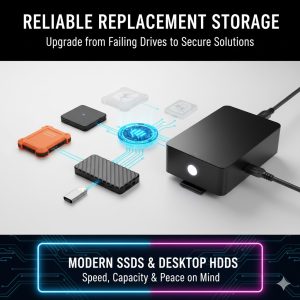
The safest, longest-lasting solution is to migrate your backup strategy to a new device that is designed for longevity and resilience. Modern Solid State Drives (SSDs) or high-capacity, specialized desktop HDDs offer superior reliability and speed compared to older hardware.

End the Fear: The Best Replacement Storage Solutions
To ensure your valuable files are protected for the next decade, look for devices built for speed, durability, and a longer warranty. We recommend two types of reliable modern storage:
| Upgrade Model Category | Why It’s the Reliable Choice | Best Use Case |
| Portable SSD (Solid State Drive) | No moving parts, highly shock-resistant, fast transfer speeds, and smaller/more durable form factor. The gold standard for data safety. | For users who prioritize speed, portability, and maximum durability against accidental drops. |
| Desktop High-Capacity HDD | Offers 8TB or more storage, ideal for massive media libraries. Typically uses high-quality internal drives built for continuous service. | For users who prioritize sheer volume of backup space (e.g., video editing, massive photo collections). |
The peace of mind that comes from knowing your irreplaceable data is safe on a modern, warrantied drive is worth the investment. Don’t let your cherished memories become a statistic.
REALUSESCORE.COM Analysis Scores
| Criteria | Old Mechanical HDD (5+ Years) | Modern Portable SSD (e.g., Samsung T9) |
| Data Reliability/Longevity | 2.0/5 (Imminent Failure Risk) | 5.0/5 (No Moving Parts, Highly Reliable) |
| Speed/Transfer Rate | 2.5/5 (USB 2.0 or 3.0 Speeds) | 4.9/5 (USB 3.2 Gen 2 Speeds) |
| Durability (Shock/Drops) | 1.0/5 (Extremely Fragile) | 4.5/5 (Rugged, Drop-Tested) |
| Cost Per Gigabyte | 4.0/5 (Cheaper initial cost) | 3.0/5 (Higher initial cost) |
| Overall Value (2025) | 1.5/5 (Dangerous for Critical Data) | 4.7/5 (Ultimate Data Security) |