

The Digital Footprint: Why Your Phone’s Location Settings Matter
Every time you open your map app, tag a photo, or even check the weather, your smartphone records your precise whereabouts. While convenient for navigation, this constant location tracking creates a detailed digital footprint accessible by app developers, advertisers, and data brokers. For privacy-conscious adults (Ages 25-55), mitigating this data leakage has become a priority in 2025. Modern operating systems (iOS 19 and Android 16) offer powerful, yet often hidden, controls to limit who knows where you are and when.
This guide provides a comprehensive, step-by-step audit to help you completely lock down your device. We focus on disabling the deep, system-level tracking features and implementing the most privacy-enhancing settings on both iPhone and Android devices. Take control of your location data today and significantly enhance your digital security.

1. The OS-Level Lockdown: Shutting Down System Tracking
The most significant location data collection doesn’t come from a single app—it comes from the operating system itself. By adjusting these deep settings, you cut off the tracking data at its source.
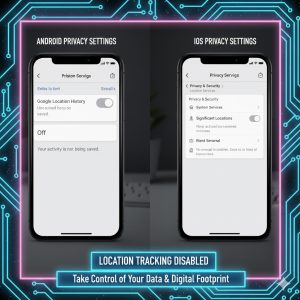
🍎 iOS Guide: Disabling Significant Locations
Apple’s Significant Locations feature (sometimes called Frequent Locations) is designed to learn places you visit most often to provide tailored services. In reality, it builds a highly accurate historical map of your life.
-
Navigate to Privacy: Go to Settings > Privacy & Security > Location Services.
-
Find System Services: Scroll all the way down and tap System Services.
-
Disable Significant Locations: Find the Significant Locations setting. Authenticate with Face ID or passcode. Toggle this feature OFF.
-
Crucial App Setting: For all essential apps (like maps), review the permission settings. Never select ‘Always’ allow. Instead, choose ‘While Using the App’ or, where available, ‘Ask Next Time or When I Share’. This ensures location is only active when the app is visibly running.
🤖 Android Guide: Turning Off Google Location History
Google’s ecosystem aggressively tracks your location history across all signed-in devices. Disabling this is the single biggest step you can take on an Android phone.
-
Access Activity Controls: Go to Settings > Google > Manage your Google Account > Data & privacy.
-
Turn Off History: Under ‘History settings,’ select Location History. Toggle the feature OFF. Note that this doesn’t automatically delete past history; you must manually delete it below the toggle switch.
-
Use Approximate Location: Starting with newer Android versions, you can choose to only provide Approximate location instead of Precise location for non-essential apps (e.g., weather). This provides a privacy buffer while allowing basic functionality.
2. The App Permission Audit: Revoking Access and Clearing Data
Even with system tracking disabled, poorly configured applications can still leak your data. You must regularly review and revoke permissions for apps that don’t absolutely need your location to function.
Actionable Step: How to Review and Revoke Permissions
Whether you use iOS or Android, the process for auditing app permissions is similar and should be performed monthly:
-
Go to App Permissions:
-
iOS: Settings > Privacy & Security > Location Services. Review the list of apps and their current access level (Never, While Using, Always).
-
Android: Settings > Security & Privacy > Privacy > Permission manager. Select Location to see all apps categorized by their level of access (Allowed all the time, Allowed only while in use, Not allowed).
-
-
Target the ‘Location Hungry’ Apps: Focus first on apps that track you in the background. These often include social media (Instagram, X), delivery services, mobile games, and older utility apps.
-
Revoke Unnecessary Access: For most apps, unless they are Maps or a ride-share service, change the permission to ‘While Using the App’ or simply ‘Don’t Allow.’
-
Clear App Data (Android Only): For stubborn apps that seem to retain location data, go to Settings > Apps > [App Name] > Storage > Clear cache and Clear data. This resets the app’s local files, often wiping stored location logs.