
1. Introduction: A Game Changer in AI Research Has Arrived
Since the launch of Google Gemini’s ‘Deep Research’ feature, power users and professionals have consistently asked for one thing: the ability to access and analyze their personal files. That long-awaited capability is finally here.
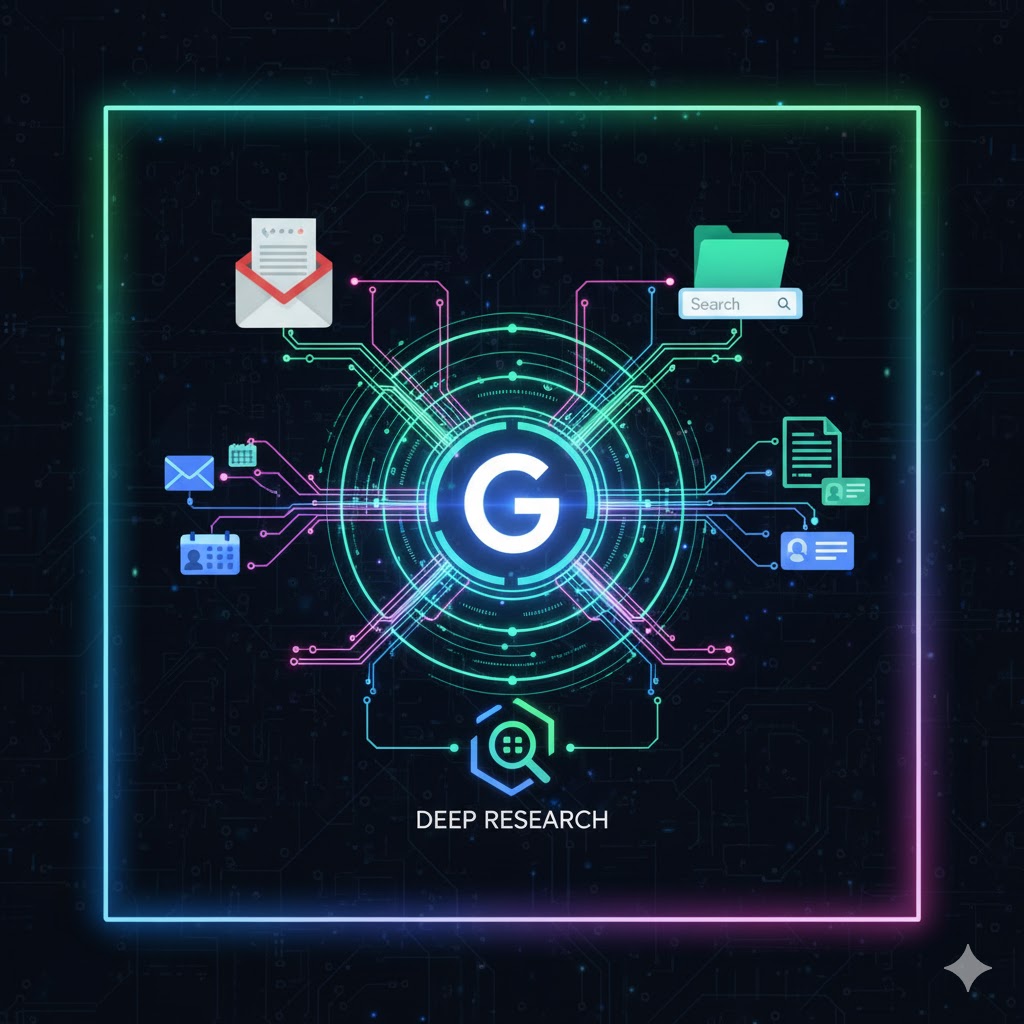
Google has rolled out a massive update granting Deep Research secure, direct access to Gmail, Google Drive (including Docs, Sheets, Slides, and PDFs), and Google Chat. This integration transforms Gemini from a web-search chatbot into the ultimate personal research agent capable of analyzing your entire digital workspace.
No more manually sifting through hundreds of files or dozens of email threads. Gemini now does the heavy lifting. This post provides a deep-dive into how the revolutionary Gemini Deep Research Gmail Drive integration affects your workflow and, crucially, details the essential privacy control options provided by Google.
2. Deep Dive: How the Gemini Deep Research Gmail Drive Integration Works
The expanded Deep Research, powered by the Gemini 2.5 model, gathers information and generates detailed, multi-page reports based on structured reasoning from multiple sources specified by the user.
While Deep Research previously relied only on public web search, it now enables truly personalized analysis through the integration of private data:
A. New Use Cases for Professionals
| Use Case | Previous Method (Web Only) | Gemini Deep Research Gmail Drive (Integrated) |
| Competitor Analysis | Only public market data and news articles. | Cross-references public web data with internal strategy memos and comparison spreadsheets (Drive) to build the report. |
| New Product Planning | Focused only on external trend research. | Combines external market research with team brainstorming documents (Docs) and related email threads (Gmail) to draft a comprehensive plan. |
| Project Handoff | Manual searching and summarization of relevant documents. | Analyzes all project files in Drive and Chat history to automatically generate a summary of key takeaways and status updates. |
This integration allows Deep Research to go beyond simple summarization and perform context-aware reasoning, combining real-time web search results with the personalized data found in your Workspace.
3. User Guide: How to Activate and Select Data Sources
This powerful new capability is currently available to all Gemini desktop users (gemini.google.com).
| Step | Action | Note |
| Step 1 | Access the Gemini desktop interface and click the ‘Tools’ button below the message box. | This enters the Deep Research mode. |
| Step 2 | Click the ‘Sources’ button that appears below the prompt box. | ‘Google Search’ is selected by default. |
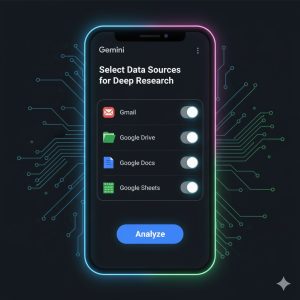
| Step 3 | Review ‘Gmail’, ‘Drive’, and ‘Chat’ options and individually select which items the AI is permitted to analyze. | If a source is not selected, the AI will not reference that data. |
| Step 4 | Enter your complex research question and click Start research. |
The AI will show a multi-step research plan before generating the final report. |
4. 3rd Review: Privacy Controls and Google’s Commitment (The Most Crucial Factor)
Accessing private Workspace data inevitably raises privacy and security concerns. Google has responded by providing clear control mechanisms and policies.
A. Google’s Strict Data Protection Principles
Google assures users that even when the Gemini Deep Research Gmail Drive function is enabled, the following strict principles are enforced:
- No Model Training: Your Workspace content (emails, documents, etc.) is not used to train or improve the underlying AI models that power Gemini.
- No Ad Targeting: Your Gmail or Drive content is not scanned or used for advertising purposes.
- No Human Review: The personal content Gemini retrieves from Google services is not accessible or reviewable by human reviewers.
B. User Control Options: Opt-Out is Always Available
Most importantly, the user is always in control and can disable this functionality at any time. All access is proactive—it only occurs when the user actively selects the respective app under ‘Sources’.
| Privacy Control Option | How to Set Up |
| Full Feature Deactivation | The Google Workspace administrator can toggle off the ‘Allow access to Workspace apps’ setting, or a personal user can disconnect the ‘Google Workspace integration’ in their Gemini settings. |
| Per-Source Access Control | Within the Deep Research mode, click the ‘Sources’ menu to individually select or deselect Gmail, Drive, and Chat. |

5. Final Verdict: A New Era of AI Productivity
The Gemini Deep Research Gmail Drive integration marks the beginning of a new era in AI-assisted productivity. AI can now move beyond general knowledge to become an indispensable assistant that fully understands your business and context.
The time savings and depth of insight gained from this feature are substantial. However, to leverage this powerful tool responsibly, it is crucial to understand the importance of ‘Source Selection’ and ensure you maintain control over your personal data via the provided ‘Privacy Control Options’.